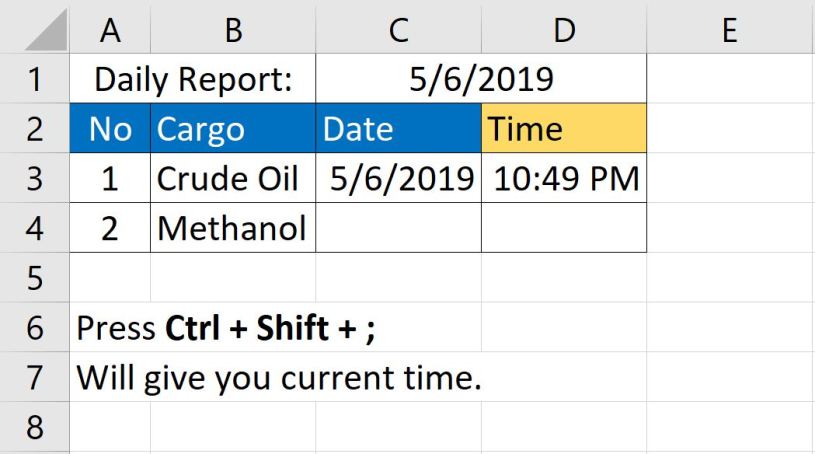
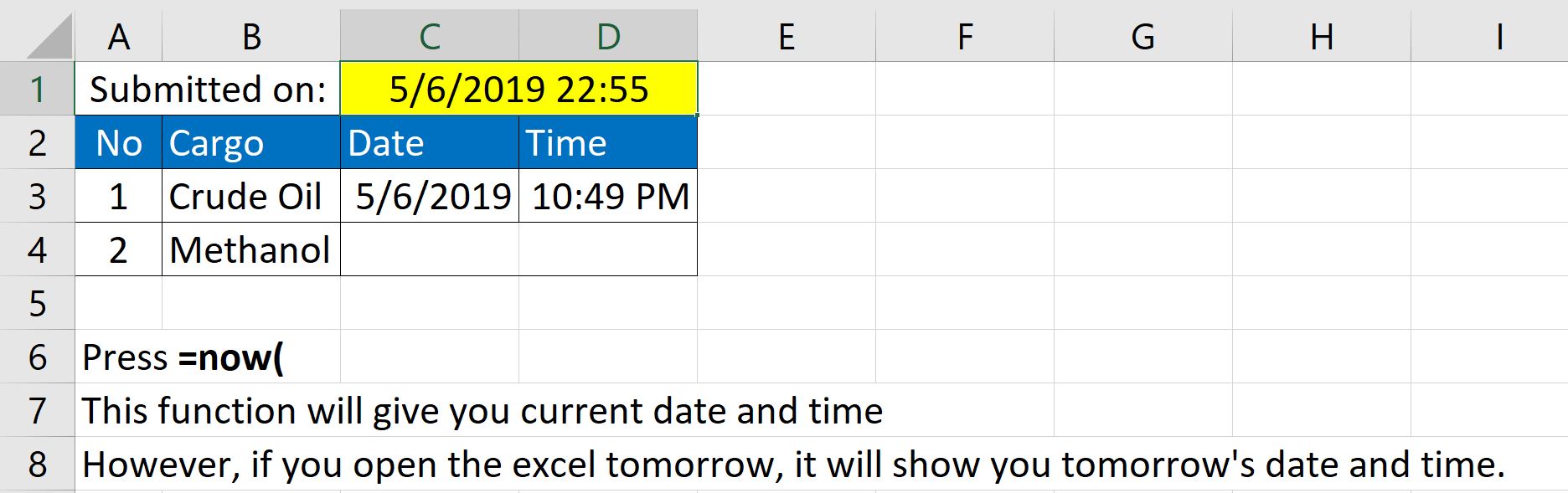
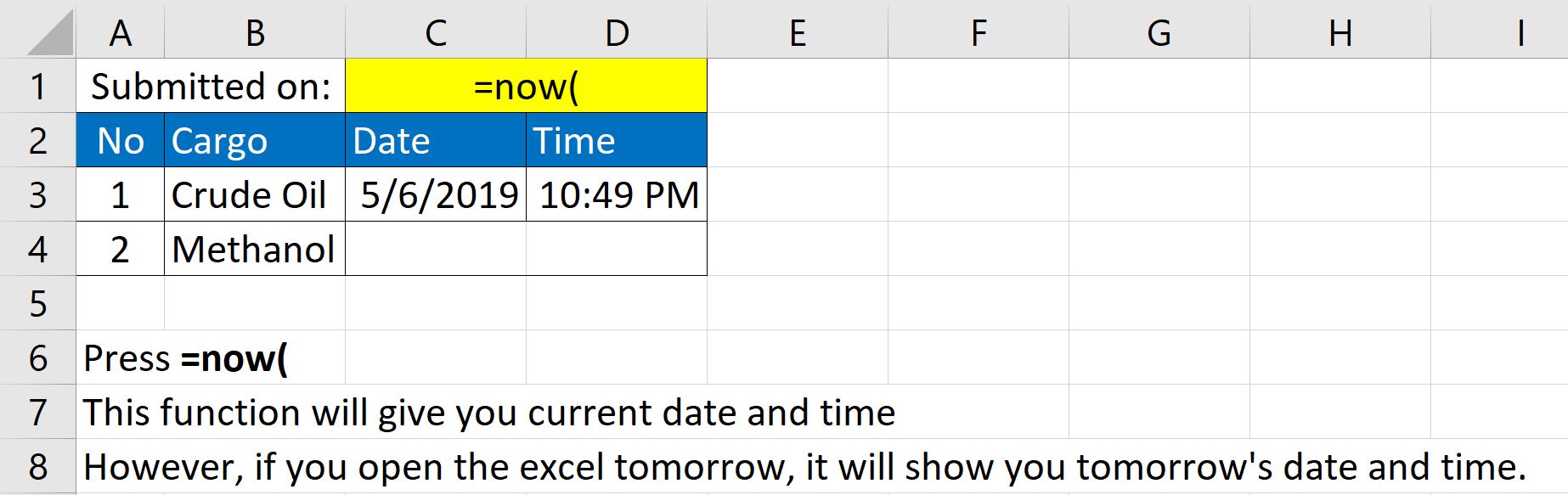
The following screenshots show the shortcuts to get current date/time. It also shows how you can automatically change date/time whenever you open your Excel.
Date and time can be confusing. If you are working with colleagues from different regions, you might bump into arguments on the right format to use. DD/MM/YYYY or YYYY/MM/DD or MM/DD/YYYY or DD-MM-YYYY, and so on. This becomes crucial when you are working on an IT related project.
In database, we use default format in YYYY-MM-DD. This is converted to a preferred format for the users. After the user selects date/time, it is converted back to YYYY-MM-DD format and stored in the database.
If you want to upload an excel into database, you will need to convert date/time into “YYYY-MM-DD” and “YYYY-MM-DD HH:MM:SS” formats respectively before the system can accept it.
Get Current Date & Time

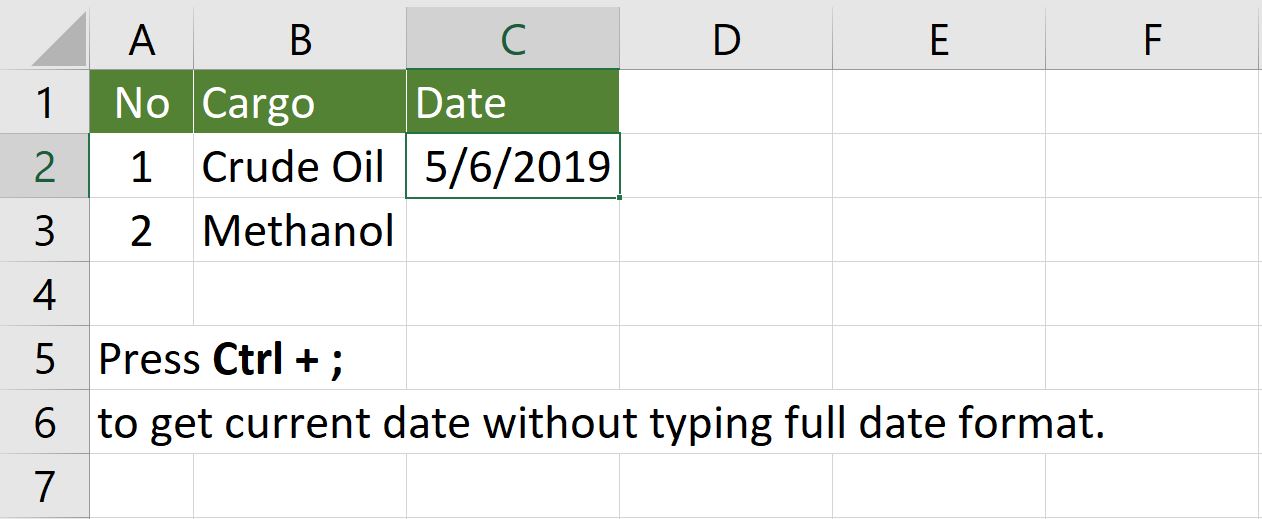
Get Date using Function
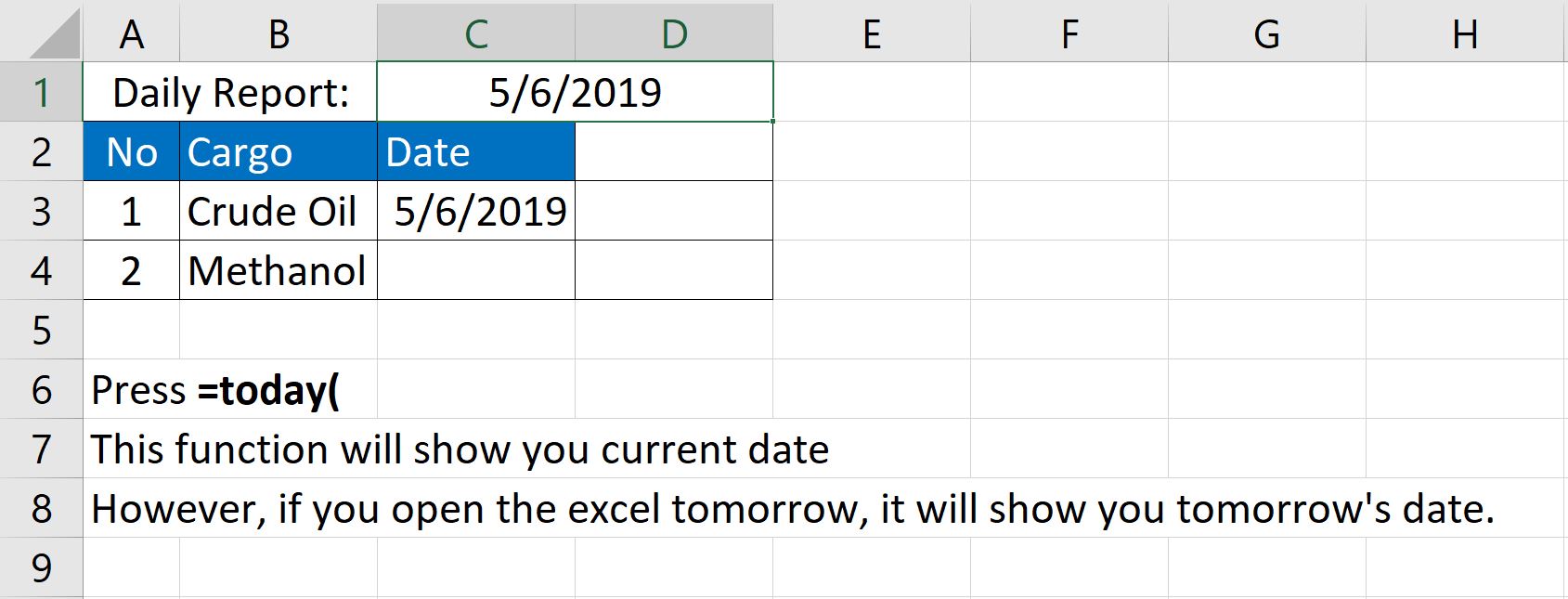
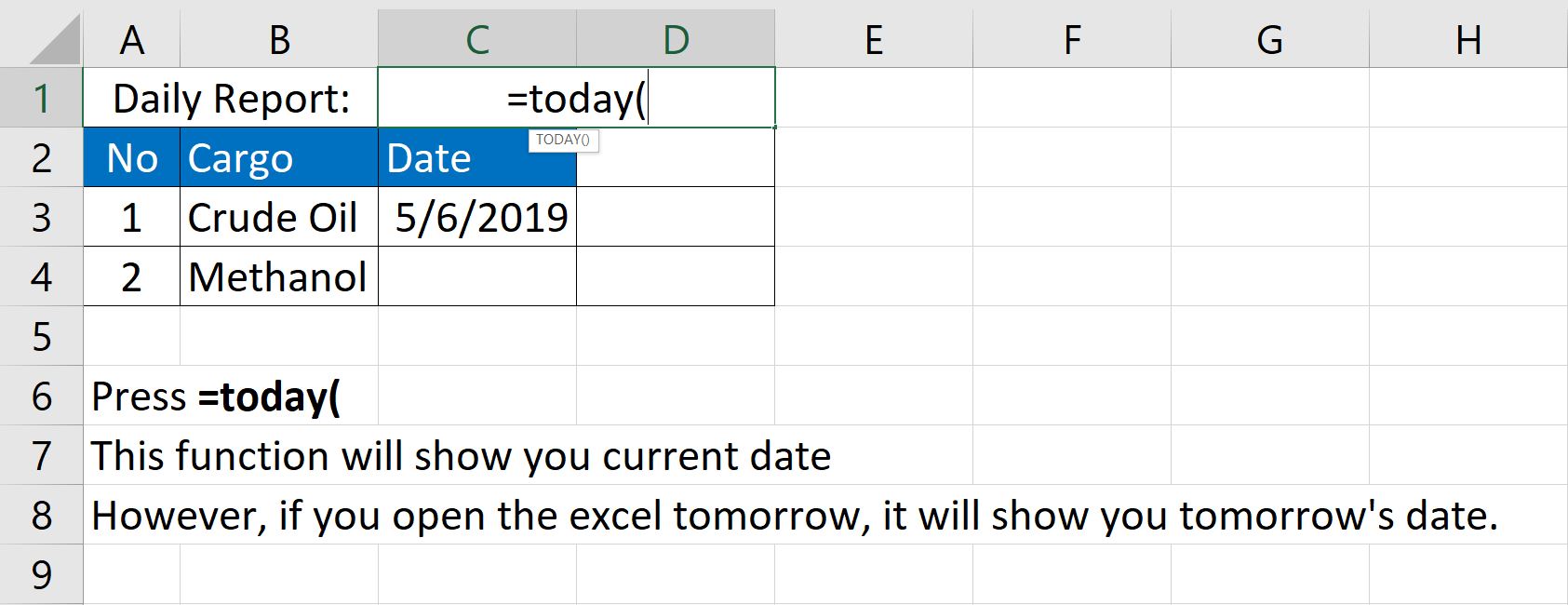
Get Date & Time using Function
 Tech That Matters