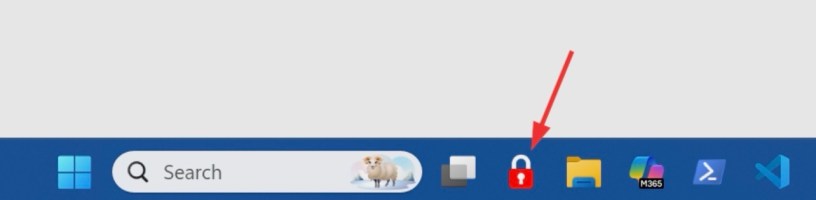
Security Reminder:
Never leave your computer unattended with the screen unlocked — even for a moment!
Here’s a fast and simple way to create a one‑click screen lock shortcut and pin it to your taskbar or you can also lock your PC by pressing Windows + L key, whichever faster and easier for you!
Lock Your Screen Instantly with 1-Click!
A few years ago, the cybersecurity team shared through the cybersecurity champions how to lock your PC with just one click. Follow these steps to set up this cool button to your taskbar!
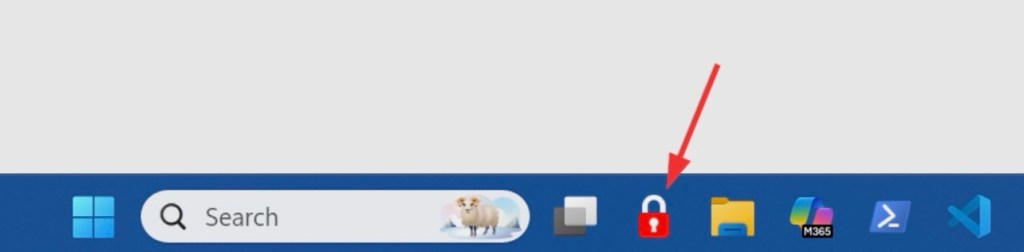
🛠 Create a Screen‑Lock Shortcut
1. Right‑click on your desktop → choose New → Shortcut
2. In the field “Enter the location of the item”, paste the following command:
Rundll32.exe user32.dll,LockWorkStation
3. Click Next, then enter any name (e.g., Screen Lock)
4. Click Finish → Your shortcut is now created on the desktop
5. Change the icon image: Right‑click the shortcut → Properties → Change Icon
• Choose an icon you like or upload one.
You can download the icon here: https://www.flaticon.com/free-icon/padlock_4503969?term=lock&page=1&position=49&origin=…
• Relocate the downloaded image in the Pictures or Documents folder. If you delete it, the image will no longer appear on the lock button, but the lock function will still work!
6. (Optional) You can relocate the shortcut created to Documents folder or a location where you will not delete this accidentally.
7. Pin it to the taskbar: Right‑click the shortcut → Pin to taskbar Or drag to your taskbar.
Now, whenever you step away from your workstation, you can lock your screen instantly with 1-click.
Stay secure — lock before you walk! 🔐
 Tech That Matters