
Accidentally reporting a legitimate email as phishing can happen to anyone, especially because the “Report Phishing” button is located right above your email.
Fortunately, you can often reverse the action — but the exact steps depend on where the email ended up and what type of account you’re using. The following is a complete, accurate guide based on Microsoft 365 behaviour and official guidance.
Note: You will not experience this in TEAMS message as reporting the message takes 2-steps to complete. Maybe Microsoft should add 2-step reporting for Outlook!
Option 1: If the Message Is in Quarantine (Default Organization Settings)
When your organization uses Microsoft 365 Defender, flagged phishing emails may be placed in a Quarantine that the end user can’t directly access without higher privileges. Only an admin (Global Admin / Security Admin) can release emails from quarantine.
Admin Steps to Release Email
1. Visit the Microsoft 365 Defender portal:
https://security.microsoft.com
2. Navigate to: Email & Collaboration > Review > Quarantine.
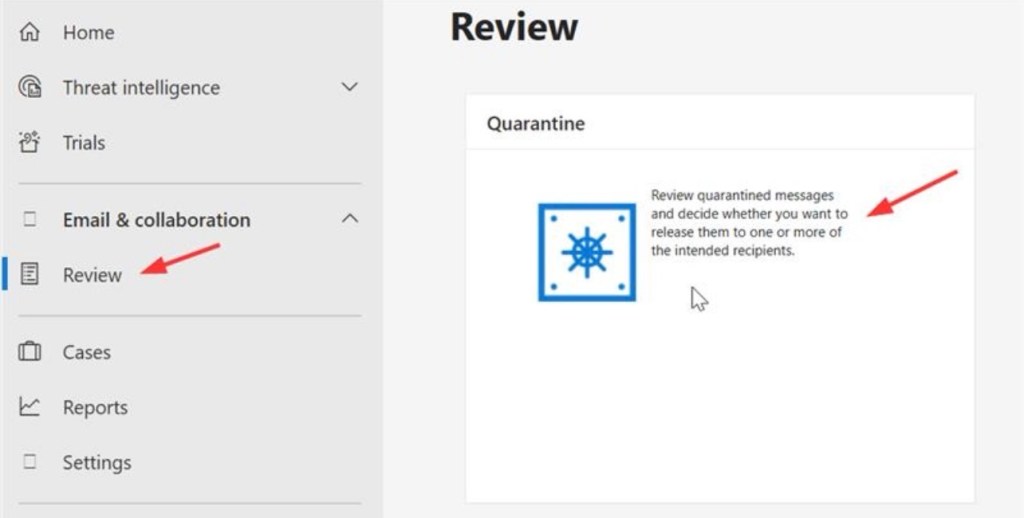
3. Search for the email you reported.
4. Select it and click Release message.
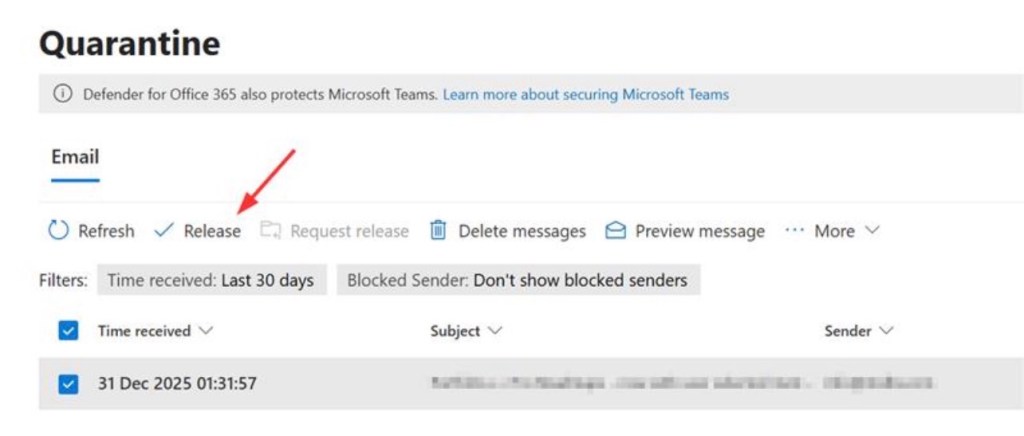
5. In the release options, select “Report message as having no threats” and/or “Submit the message to Microsoft to improve protection (false positive)” if you want to notify Microsoft and help refine filters.
Once released, the email will be delivered back to the your Deleted/Junk folder.
Most Likely Event: If you cannot find the email from Defender portal, please wait few minutes for Outlook to revert with non-malicious result and retrieve your email from Deleted/Junk folder.
Option 2: Quickly Recover from Junk/Spam Misclassification (Personal Account)
If the message was reported as Junk, it will moved to Junk or Deleted Items, and you can restore it yourself.
However, if the message was reported as phishing and removed completely (especially in personal accounts), recovery may not be possible if it isn’t stored in Junk/Deleted or accessible via admin quarantine — Microsoft automatically deletes some phishing reports at server level. Recovery in these cases might only be possible by contacting Microsoft Support
https://learn.microsoft.com/en-us/answers/questions/5638898/how-can-i-retrieve-emails-marked-a-phis…
To recover messaged reported as Junk:
Steps
- Open Outlook (desktop or Outlook on the Web).
- Go to Junk Email or Deleted Items.
- Locate the email you mistakenly marked.
- Right-click the message and choose:
- Mark as Not Junk (or Not Phishing) to move it back to your Inbox.
- If it’s in Deleted Items, right-click > Move > Inbox (or your chosen folder).
Microsoft’s filtering engine uses your correction to teach the system what is and isn’t junk or phishing going forward.
Preventing Future Misreports
To avoid repeated misclassification:
Safe Senders and Blocked Senders
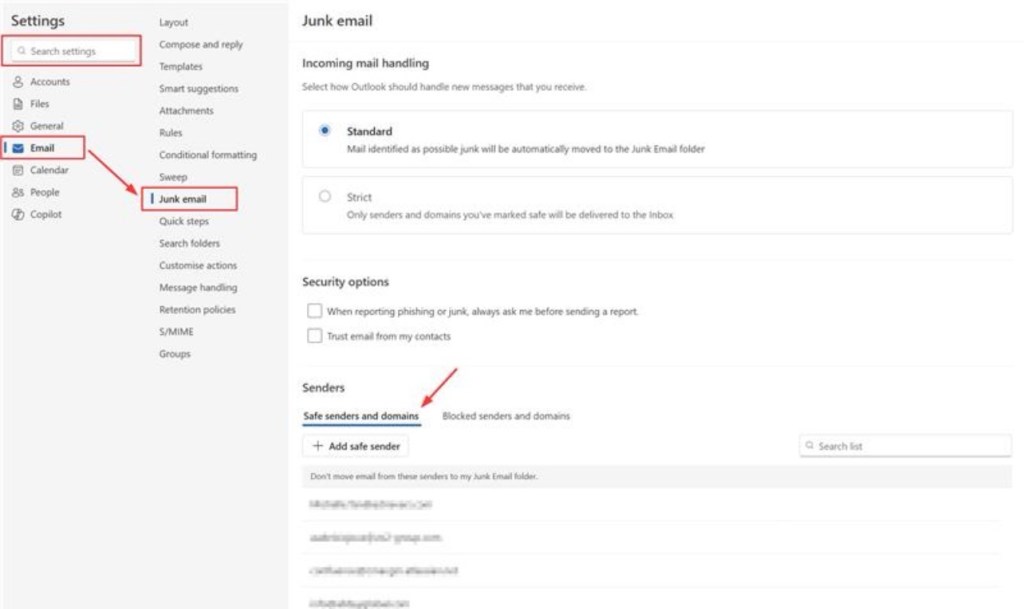
- In Outlook: go to Settings > View all Outlook settings > Email > Junk email.
- Add trusted email addresses to your Safe senders and domains list.
- Remove any unintended entries from your Blocked senders and domains list.
This helps ensure future legitimate messages from the same sender aren’t automatically flagged as phishing or junk.
 Tech That Matters