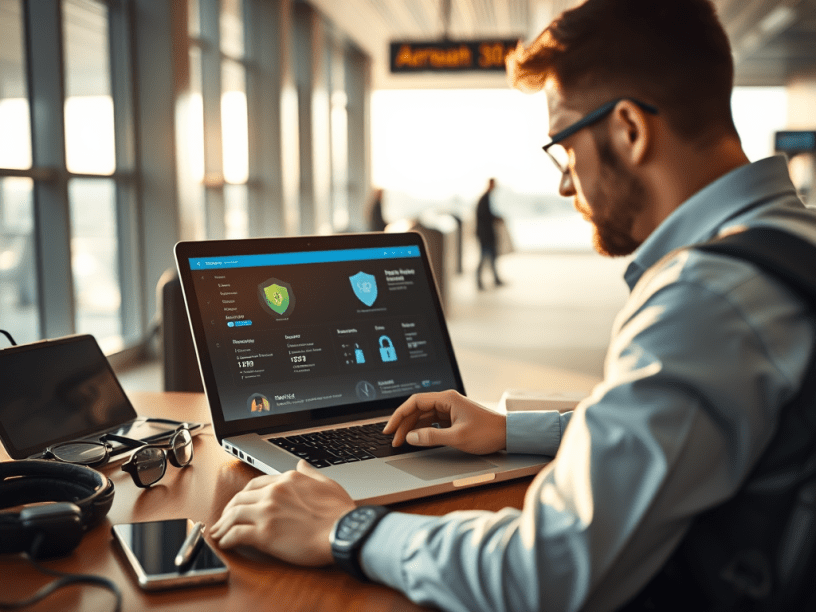
Travel is a time for focus on schedules, meetings and sightseeing — not on cleaning up avoidable cybersecurity messes. Whether you’re on business or holiday, your phone, tablet and laptop carry sensitive access to email, corporate systems and personal accounts. The good news: a few simple habits will dramatically reduce your risk.
Why this matters
Your devices hold credentials, corporate files, personal data and often payment methods. Public networks, compromised chargers and cleverly crafted phishing messages give attackers easy ways in. Government and national cyber bodies advise travellers to avoid risky networks, keep software updated and use protections such as multi-factor authentication (MFA) and VPNs.
Top actions to take before you leave
- Update everything now. Install the latest operating-system and app updates on every device before travel — security patches close vulnerabilities attackers exploit.
- Back up important data. Back up to a cloud service or an external disk so you can restore data if a device must be wiped.
- Enable multi-factor authentication (MFA). Turn MFA on for email, cloud storage and other services that support it — it prevents most account takeovers even when passwords are stolen.
- Request a ‘clean’ travel device from IT for high-risk travel. For high-risk trips, many organisations issue sanitized hardware configured to corporate policy. Ask your IT/security team.
- Set up (and test) a VPN before you go. If your organisation approves VPN use, install and test it before travel so you know how to connect. If you’re unsure, ask IT.
- Use Travel eSIM instead of connecting to airport WIFI. Most airports in China require you to have a local number to connect to their WIFI. All Airport WIFI are also unsecured network. Travel eSIM also allows you to connect to Google, Facebook, and WhatsApp even if they are blocked in some countries.
- Reduce exposed data. Remove unnecessary accounts, uninstall apps you don’t need while away, and sign out of services on shared devices.
What to do while travelling
- Avoid public Wi-Fi for sensitive tasks. Do not log in to banking or corporate systems on airport, café or hotel Wi-Fi unless you are on a trusted network or connected through a VPN. Attackers on the same network can intercept traffic.
- Prefer your mobile data or a personal hotspot. Your phone’s cellular connection (or your own hotspot device) is generally safer than open Wi-Fi.
- Use a reputable VPN when you must use public Wi-Fi. A VPN encrypts the link between your device and the VPN server, protecting traffic from local eavesdroppers (note: not all VPNs are equally trustworthy — use corporate or well-known, audited services).
- Beware of fake network names. Confirm the exact SSID or WIFI name with staff before connecting — attackers can create look-alike networks to capture credentials.
- Avoid public USB charging and unknown cables. “Juice-jacking” can transfer data over a compromised port. Use a wall outlet, your own power bank, or a USB data-blocker that only passes power.
- Disable Bluetooth and AirDrop when not needed. Open wireless services increase the attack surface and can allow unsolicited file transfers or device pairing.
- Keep devices with you; don’t leave them unattended. Physical access greatly increases the risk of compromise.
Recognising compromise (what to watch for)
Signs a device may be infected or controlled remotely include:
- Much slower performance or unexplained battery drain
- Unexpected reboots or software crashes
- Being redirected to strange websites or seeing adverts/notifications not previously present
- Unexplained login failures or MFA prompts you didn’t initiate
- New apps you didn’t install, or settings that are changed
If you see these, stop using the device, disconnect it from networks and contact your IT or security team immediately.
Common attacks explained (non-technical examples)
- Phishing (email/text): An attacker sends an urgent-looking message asking you to click a link and “confirm” credentials. If you enter them on a fake page, the attacker steals your password. Simple defense: pause, check sender address, don’t click links — instead open the service directly in a browser you trust.
- Man-in-the-middle on public Wi-Fi: When you connect to an unsecured network, an attacker on the same network can intercept traffic between you and the website. Simple defense: use HTTPS sites, but better — use a trusted VPN to encrypt everything.
- Juice-jacking: A public USB port is rigged to copy data from or install software on your device when you plug in. Simple defense: use your own power bank or a power-only cable (or data blocker).
- Malicious app updates / sideloads: Some attackers trick users into installing “updates” from untrusted sources that contain spyware. Only install apps from official app stores and avoid granting broad permissions.
Quick Technical Primer (for non-technical users)
- What is a VPN? A VPN creates an encrypted tunnel from your device to a VPN server; traffic inside the tunnel is unreadable to others on the same local network. It helps protect you on public Wi-Fi but does not magically make a malicious website safe.
- What is MFA? Multi-factor authentication adds a second proof that you are who you say you are — for example, a code sent to your phone or generated by an app. With MFA, a stolen password alone is usually not enough to access an account.
- Why we update software? Updates include patches for security bugs; attackers often exploit known vulnerabilities for which patches already exist. Updating is the simplest way to remove those windows of exposure.
If your device is stolen or you suspect compromise
- Report it to your IT/security desk and local authorities. Your IT team can revoke access tokens, force password resets, and advise how to report the loss.
- Remotely wipe the device if that option is enabled and you cannot recover it safely.
- Change passwords for key accounts from a known-good device (not the compromised one).
- Monitor accounts and report suspicious transactions immediately.
Practical Checklist (print or note this before travel)
- Update OS & apps ✔️
- Back up important data ✔️
- Enable MFA on key accounts ✔️
- Install/configure trusted VPN ✔️
- Pack a personal power bank / power-only cable ✔️
- Use mobile data / hotspot for sensitive tasks ✔️
- Don’t install apps from unknown sources ✔️
 Tech That Matters